
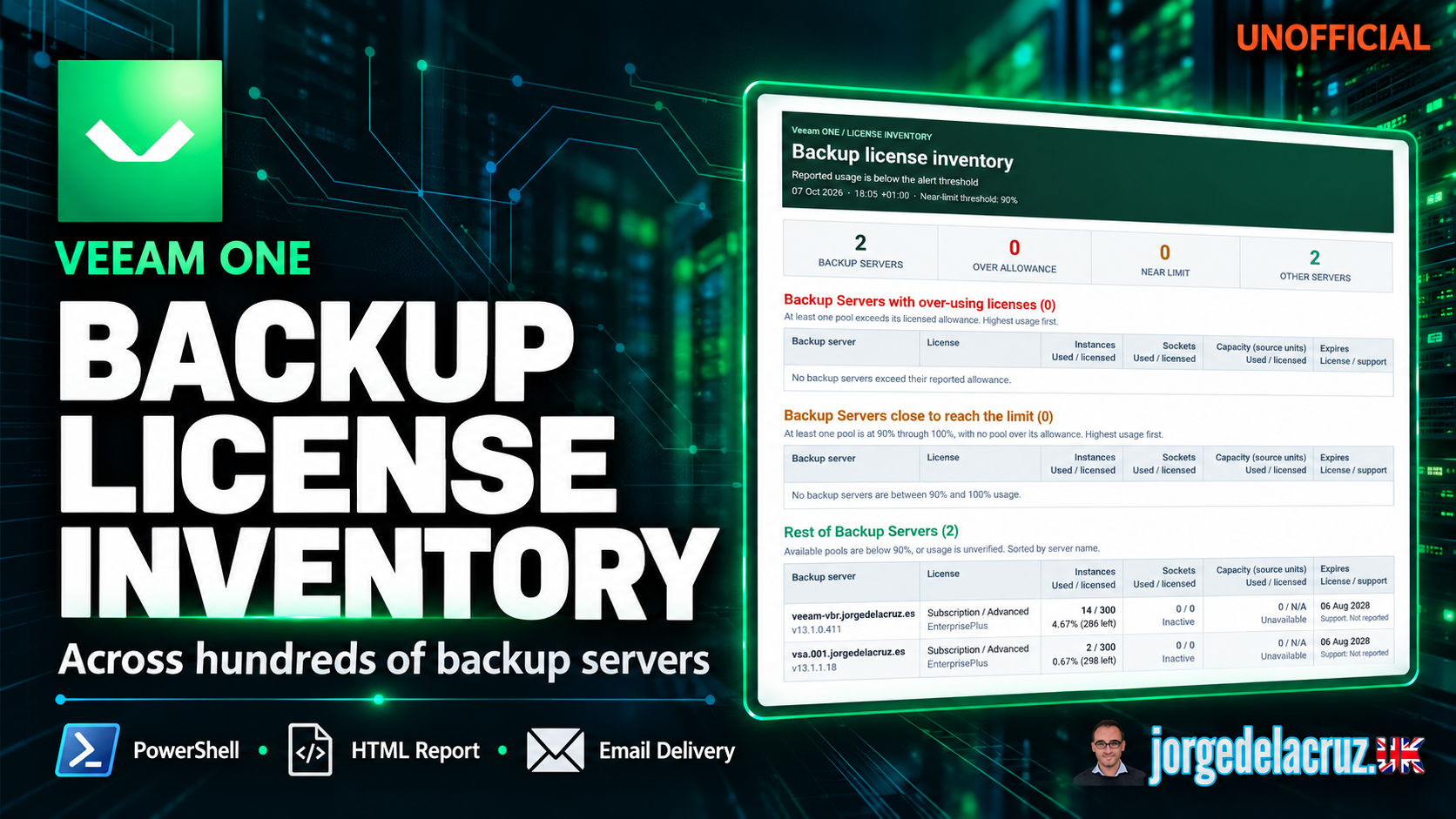
 Greetings friends, today I want to share another reporting use case that came out of a conversation with a customer. This time, we are looking at something every backup team needs to keep an eye on: license consumption.
The customer manages hundreds of Veeam Backup & Replication servers. At that scale, checking the license usage on each server individually becomes quite a task. And when someone asks which servers are getting close to their allowance, you want to have that answer ready.
During our conversation, the questions were quite practical:
- Which backup servers are consuming more licenses than their allowance?
- Which ones are getting close to the limit?
- How much room do we have left for instances, sockets, and capacity?
- Can we put all of this into one report and send it to the team?
Veeam ONE already collects the backup server inventory, so it made sense to use that information as the starting point.
So, as usual, I ended up building a PowerShell script. It queries the Veeam ONE SQL database, evaluates the different license pools, and generates an HTML report with the servers that need attention at the top.
And yes, it can also send the report by email using Microsoft Graph API. 🙂
Why is this useful?
With a small environment, you can probably remember which backup server is running close to its license allowance. With hundreds of servers, spread across different locations and managed by different teams, that becomes much harder.
A new project starts. More workloads are added. Another team grows its backup footprint. Everything keeps moving, and the license consumption moves with it.
I wanted a report that the backup team could open and immediately see where to start. If a server is already over its allowance, it should be easy to find. If another one is approaching the limit, we should have time to investigate before adding more workloads.
That is what this report is trying to solve: a single view of the collected license inventory, with enough detail to understand each server.
Building blocks and logic
The script uses the following stored procedure in the Veeam ONE SQL database:
reportpack.rsrp_Backup_BackupInventory
From there, it retrieves the backup server metadata and license inventory, evaluates the consumption, and builds the HTML report.
The flow is quite simple:
- Connect to the Veeam ONE SQL database, or read an offline CSV/TSV export.
- Retrieve the backup server and license inventory.
- Evaluate Instance, Socket, and Capacity usage separately.
- Group the servers by license alert severity.
- Generate the HTML report and display a summary in the console.
- Send the report by email, if email delivery is enabled.
The database route uses the inventory collected by Veeam ONE. The offline route uses the data in your export, so the report reflects that snapshot.
Three license pools, each with its own consumption
One detail I wanted to get right was keeping the different license pools separate. A server can have room available in one pool while another is already approaching its allowance.
| License pool | What the report tracks |
|---|---|
| Instances | Used and licensed instances, utilization percentage, and remaining balance. |
| Sockets | Socket consumption against the socket allowance. |
| Capacity | Source capacity consumption against licensed capacity, with configurable display units. |
For example, a server might have plenty of instance licenses available but already be close to its capacity allowance. Looking only at the instance count would miss the reason that server needs attention.
What does the report include?
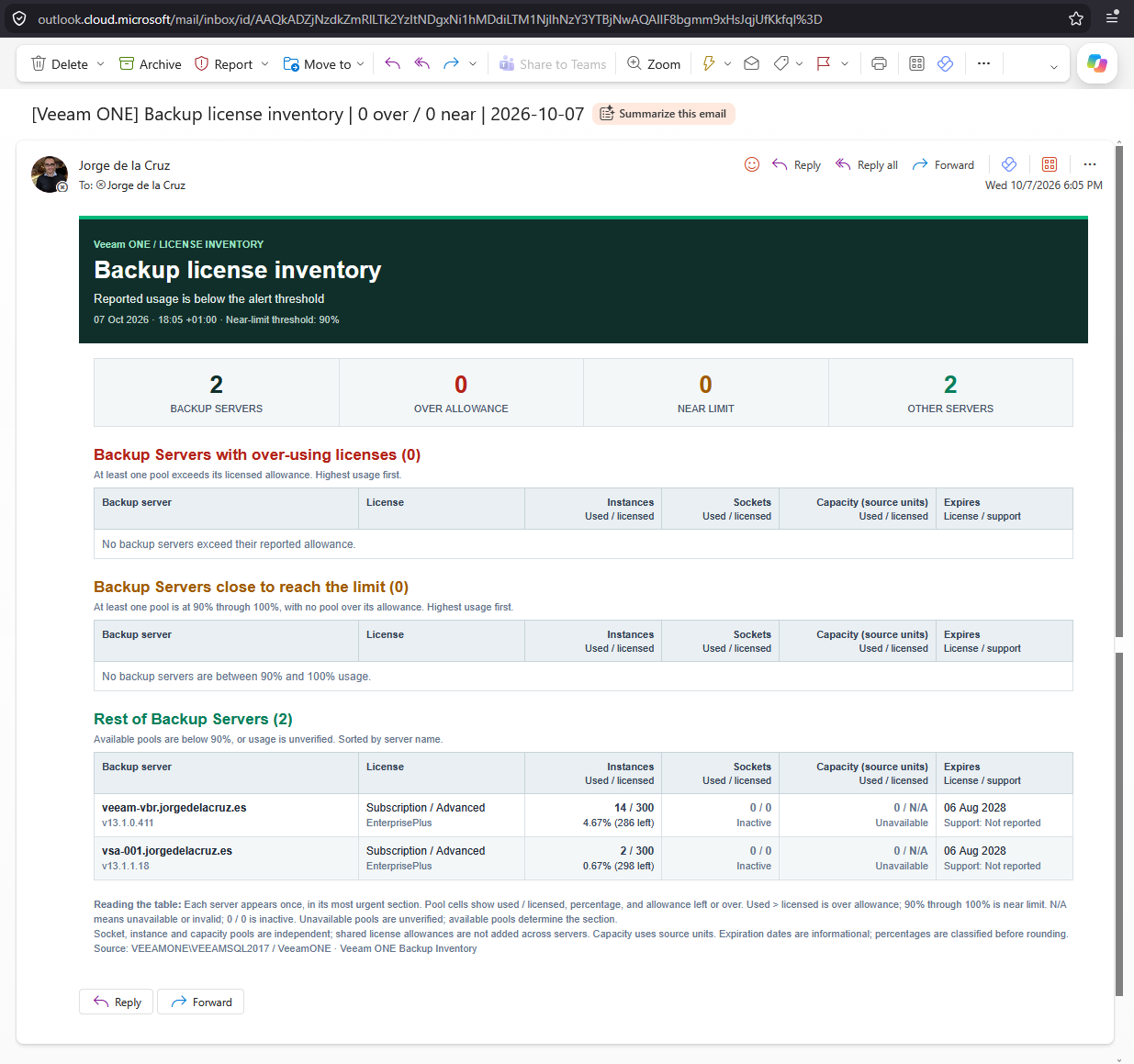
At the top, we have the usual KPI cards:
- Total monitored backup servers.
- Servers over their allowance.
- Servers near the limit.
- Remaining backup servers.
This gives you a quick overview before moving into the server details. The inventory is then organised into three sections.
Over Allowance
This is the red section, and the first one I would review. A server appears here when consumption exceeds the allowance in any of its license pools.
It also catches positive consumption against a known zero allowance. That is worth investigating rather than hiding it behind a percentage that cannot be calculated.
Near Limit
This is the orange section. A server appears here when any verified license pool reaches or exceeds the warning threshold, provided none of its pools is over allowance. By default, the threshold is 90%, and you can change it to suit your environment.
For example, 92 used instances out of 100 licensed instances would put a server in this group, provided none of its pools is already over allowance. A server over allowance stays in the red section.
This is useful when planning additional protection. You can see where you have room and where you should review the allowance first.
Rest of Backup Servers
The remaining servers appear in the green section. This includes servers below the warning threshold, but it can also include servers with unverified usage.
Keep that distinction in mind: green does not automatically mean that every license metric has been verified. Review the underlying values when information is missing or unclear.
Getting started
Download VONE_Backupserver_Licensing_Report.ps1 and run it from a Windows machine with access to your Veeam ONE SQL database.
The prerequisites are:
- Windows PowerShell 5.1 or PowerShell 7 on Windows.
- Connectivity to the Veeam ONE SQL Server, unless you are using offline input.
- An account with the required database read access and permission to execute the reporting stored procedure.
- A writable destination folder for the HTML report.
No external PowerShell modules are required. The script uses the native SQL client for database access and REST calls for Microsoft Graph.
Configuring and running the script
You can review the configuration inside the script or pass the main settings when running it.
The two values to check first are SQLServer and SQLDBName. The defaults are VEEAMONE\VEEAMSQL2017 and VeeamONE, so change them to match your environment.
A basic execution looks like this:
.\VONE_Backupserver_Licensing_Report.ps1 -SQLServer 'SQL01\VEEAM' -SQLDBName 'VeeamONE'
By default, the HTML file is called BackupLicenseInventory.html. You can also set the destination and warning threshold explicitly:
.\VONE_Backupserver_Licensing_Report.ps1 `
    -SQLServer 'SQL01\VEEAM' `
    -SQLDBName 'VeeamONE' `
    -WarningThresholdPercent 90 `
    -OutputPath 'C:\Reports\BackupLicenseInventory.html'
Once the script finishes, open the HTML file in your browser. You will also have a summary table in the PowerShell console.
Running the report from an offline export
This is useful when the team reviewing the report cannot connect directly to the Veeam ONE database.
The script can read a tab-delimited TSV or comma-delimited CSV export of the expected inventory dataset through InputPath:
.\VONE_Backupserver_Licensing_Report.ps1 `
    -InputPath 'C:\Reports\VONE_BackupLicenseInventory.tsv' `
    -OutputPath 'C:\Reports\BackupLicenseInventory.html'
With this option, the script bypasses the direct SQL connection. Keep the expected columns and section information intact when preparing the export.
Adjusting thresholds and capacity units
The near-limit threshold accepts values from 1 to 100. If you want an earlier warning, for example, you can use:
-WarningThresholdPercent 80
For capacity, review CapacityDisplayDivisor and CapacityUnit in the configuration. These let you adjust the displayed values and labels.
Make sure the divisor matches the units in the source data. Changing the label to TB by itself does not convert the value.
The SQL configuration also supports Windows Integrated Authentication, which is the default, or SQL Authentication with the password supplied through VONE_SQL_PASSWORD. Connection and query timeouts can be adjusted through SqlConnectionTimeout and SqlCommandTimeoutSeconds.
Email configuration
The report can be sent automatically using Microsoft Graph API. This is useful when you want the backup team to receive the latest inventory without having to run the script themselves.
Create a Microsoft Entra ID app registration, add the Microsoft Graph Mail.Send application permission, and grant admin consent. You can find the API details in Microsoft’s sendMail documentation.
Then update the email settings in the existing $Config hashtable. For client secret authentication, the values look like this:
$Config.EnableEmail        = $true
$Config.AuthMode           = 'ClientSecret'
$Config.TenantId           = 'YOUR-TENANT-ID'
$Config.ClientId           = 'YOUR-CLIENT-ID'
$Config.ClientSecret       = 'YOUR-CLIENT-SECRET'
$Config.SenderEmail        = '[email protected]'
$Config.ToRecipients       = @('[email protected]')
$Config.EmailSubjectPrefix = '[Veeam ONE] Backup license inventory'
$Config.AttachHtmlReport   = $false
$Config.SaveToSentItems    = $true
The script embeds the HTML report in the email body. If you also want the HTML file attached, set AttachHtmlReport to $true.
Certificate authentication is also available through AuthMode = 'Certificate' and CertificateThumbprint.
No Microsoft Graph SDK or MSAL PowerShell module needs to be installed for this script.
Scheduling the report
Once you have run the report manually and checked the results, the next step is Windows Task Scheduler.
A weekly report on Monday morning would be a good starting point. For environments growing quickly, you might prefer a daily run.
Use powershell.exe for Windows PowerShell 5.1, or pwsh.exe for PowerShell 7. An example argument string is:
-NoProfile -File "C:\Scripts\VONE_Backupserver_Licensing_Report.ps1" -SQLServer "SQL01\VEEAM" -SQLDBName "VeeamONE" -OutputPath "C:\Reports\BackupLicenseInventory.html"
Make sure the scheduled task runs with an account that has the required SQL permissions and access to the output folder. If you use certificate authentication for email, that account also needs access to the certificate and its private key.
A few things to check if something does not work
“Set SQLServer to your SQL Server instance…”
Check that you have replaced the example SQL Server value with the correct hostname and instance.
“No license rows for section_id 0”
Check the inventory returned by the stored procedure, or the contents of your offline export. The script needs the expected license rows and schema to build the report.
“Microsoft 365 authentication failed”
Review the Tenant ID, Client ID, and the secret or certificate configured for the application. Also check that the Mail.Send application permission has admin consent.
A note about support
This is a community project, provided as is. It is not an officially supported Veeam component, and you should not open Veeam Support tickets for this script.
As always, review the script, test it in your environment, and compare the output with the license inventory before scheduling it. If you find something that can be improved, share your feedback or raise a GitHub issue.
Script and feedback
The script name is VONE_Backupserver_Licensing_Report.ps1. My Veeam HTML reporting projects are available in the following repository:
https://github.com/jorgedlcruz/veeam-html-reporting
I really enjoy these customer conversations because they bring very practical problems to the table. In this case, the need was to review license consumption across hundreds of backup servers and quickly understand which ones needed attention.
Having that inventory in one HTML report, with separate license pools and optional email delivery, makes the regular review much easier for the team.
Hope you enjoy it.
Leave a Reply