
 Greetings friends, during this VeeamON 2021, Veeam has announced many new features that I will be telling you during the following days, but certainly one of the most significant is the new version of, already a veteran (Danny Allan mentioned about 175,000 downloads of the product), Veeam Backup for Microsoft Office 365, in this case, Veeam announces its version 6 of the product.
Just a year ago I told you in detail about everything new that Veeam Backup for Microsoft Office 365 v5 brought, and today we’re going to take a look at the two biggest new features the product will include when it’s released.
New User Self-Service Portal in Veeam Backup for Microsoft Office 365
 The new self-service portal increases ROI for enterprises and service providers by reducing the burden on IT departments (allowing them to focus on other tasks) and puts recovery in the hands of the user.
This helps organizations divide the work between teams, improves the way they manage restores, and saves the time and effort of building their own portals, providing faster access to critical data.
I still remember the number of hours I must have spent restoring emails, lost calendars, contacts, etc. Whether in Zimbra, Exchange, or even Lotus Domino, well, that time spent restoring items through the backup manager is over with this future version.
Let’s see a couple of screenshots (the final product might be different at the time of release) of the official presentation of VeeamON 2021. As we can see, users will be able to connect to a new portal that is presented from the Veeam Backup for Microsoft Office 365 v6 server, they will enter their credentials: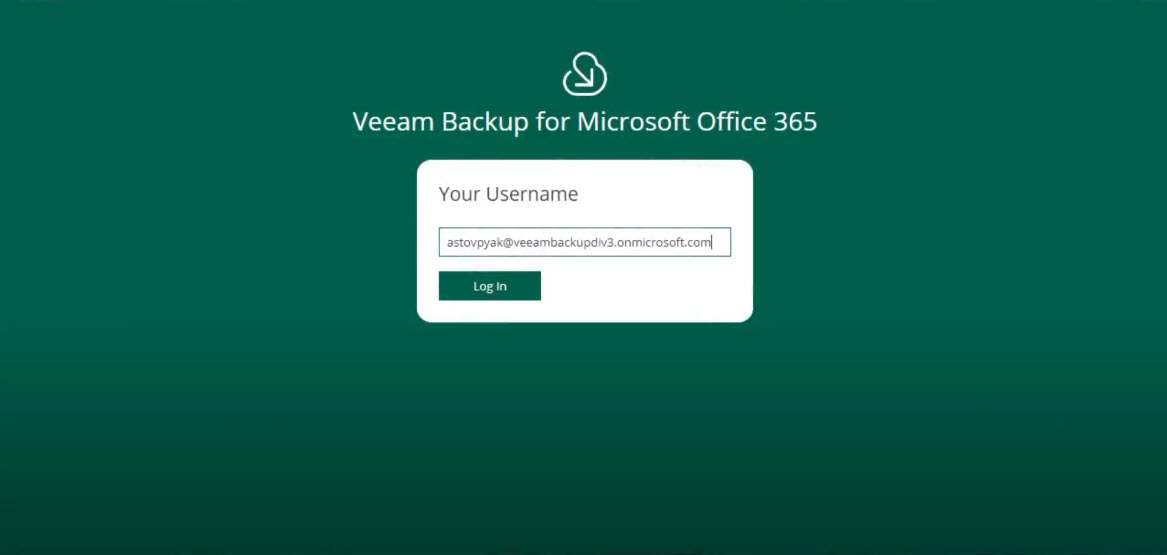
Once logged in, they will be able to see all the content that belongs to them and they have access to it. From this convenient panel, users will select the items they want to restore, being able to select multiple emails for example, of course, or use the simple search on the top, etc. 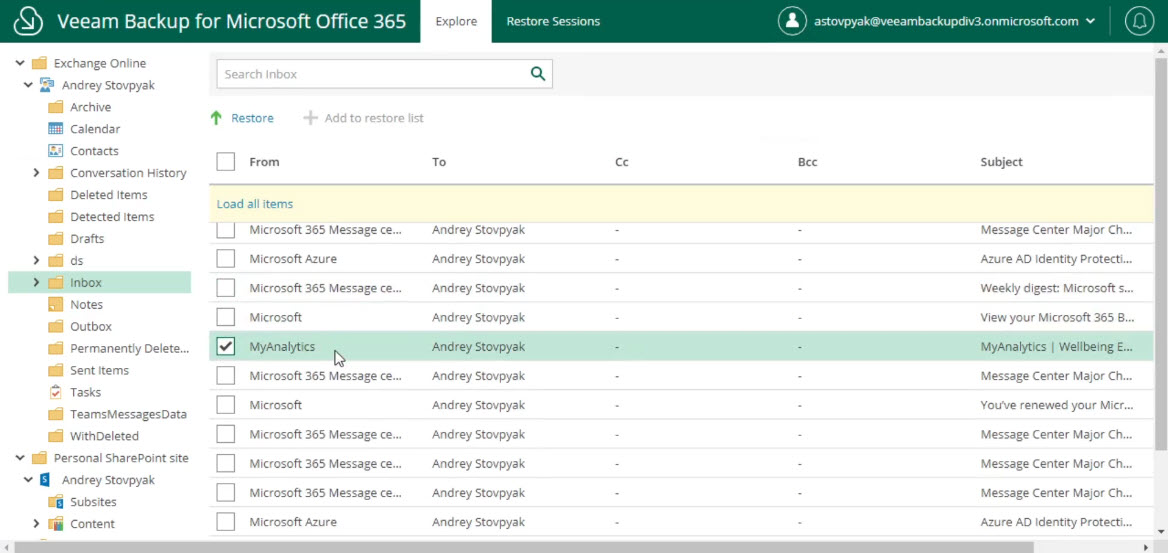 The wizard will ask us if we want to restore the selected components to the original location, or if on the contrary, we want to recover them in some new location (for example a new folder called RESTORE, is what I did before)
 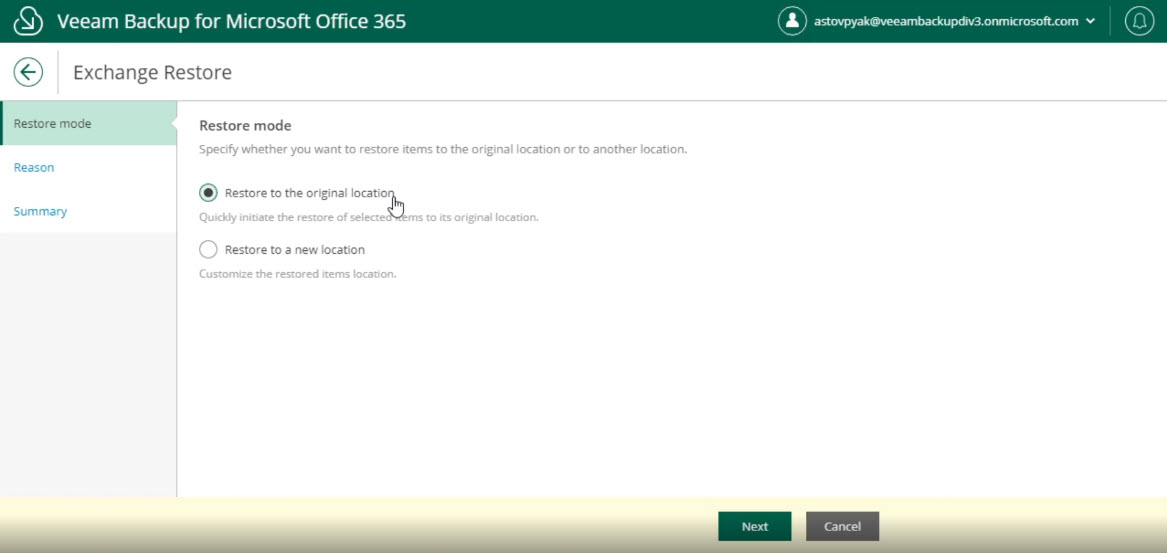 The restore process will start, and the user will be able to see at all times the status of the operation, which will be completed in just a few seconds anyway:
 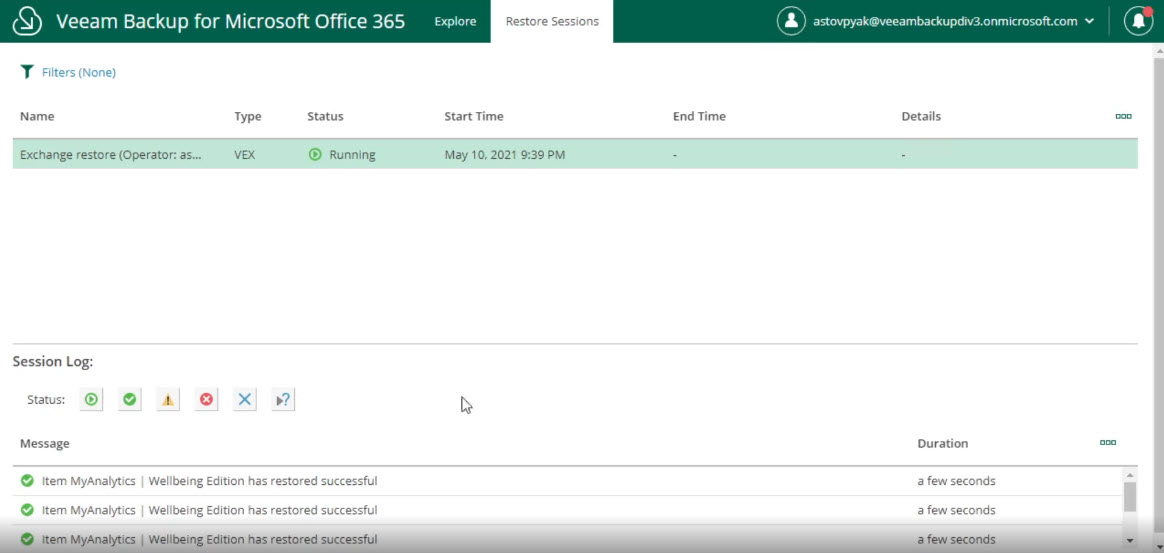 And that’s it! Simple isn’t it. Giving these restore abilities to users is the best thing that could have happened to Microsoft Office 365, as one of the biggest problems at the user level is when they have lost items, and sure, they can restore things while they are in the trash, maybe a few days even if they have been deleted, but beyond that it becomes complex. never again! With this new portal, I’m sure the end-users are very grateful, and above all, I hope that calls to the systems department can be reduced.
New Office 365 Backup on Azure Archive and AWS Amazon S3 Glacier
 For years there has been a debate about how many copies of Office 365 are necessary, one backup or following industry backup best practices with one backup.
Now with v6, customers can do either and quickly create secondary copies directly from object storage to Azure Archive, Amazon S3 Glacier and Glacier Deep Archive, with different retention period options. Now users can more effectively achieve the 3-2-1 data protection rule by providing additional confidence in restoring Office 365 data.
This new functionality is very interesting, and it is specially intended to meet the demanding 3-2-1 rules, which means having three or more copy points, in two different sites, one of them offline, thanks to this functionality, now we can achieve it.
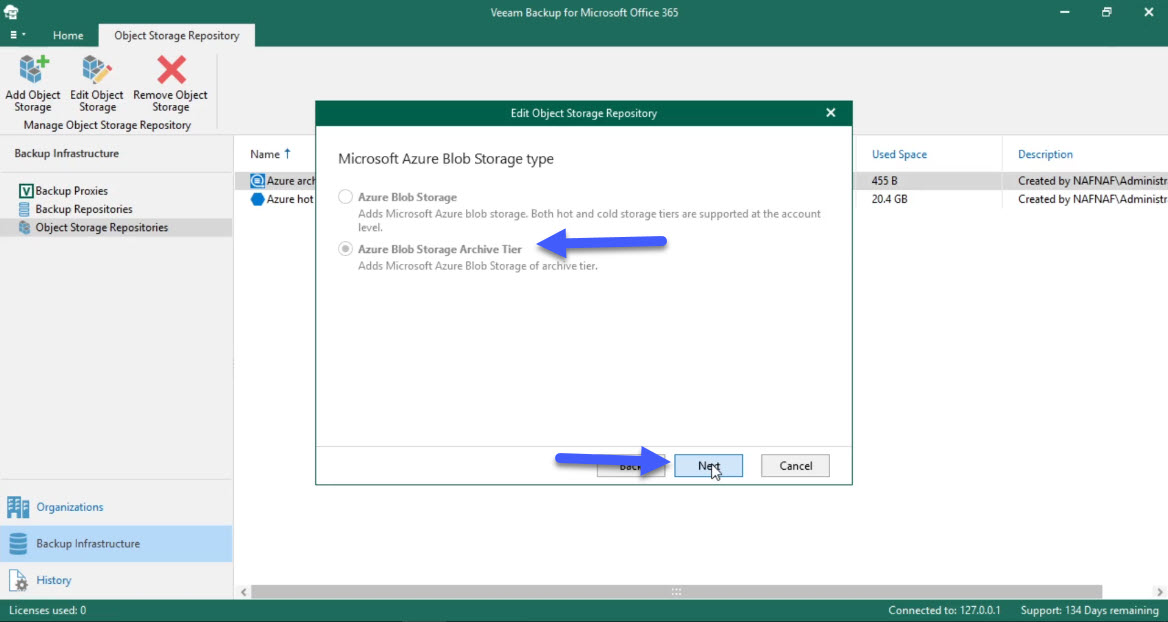
Thanks to the demo presented during VeeamON 2021, we can see that it will be as simple, as adding a new Object Storage Repository, which is of type Azure Blob Storage Archive Tier, or AWS S3 Glacier:
Once we have our new Object Storage, we select the backup job, to which we want to create a Backup Copy Job: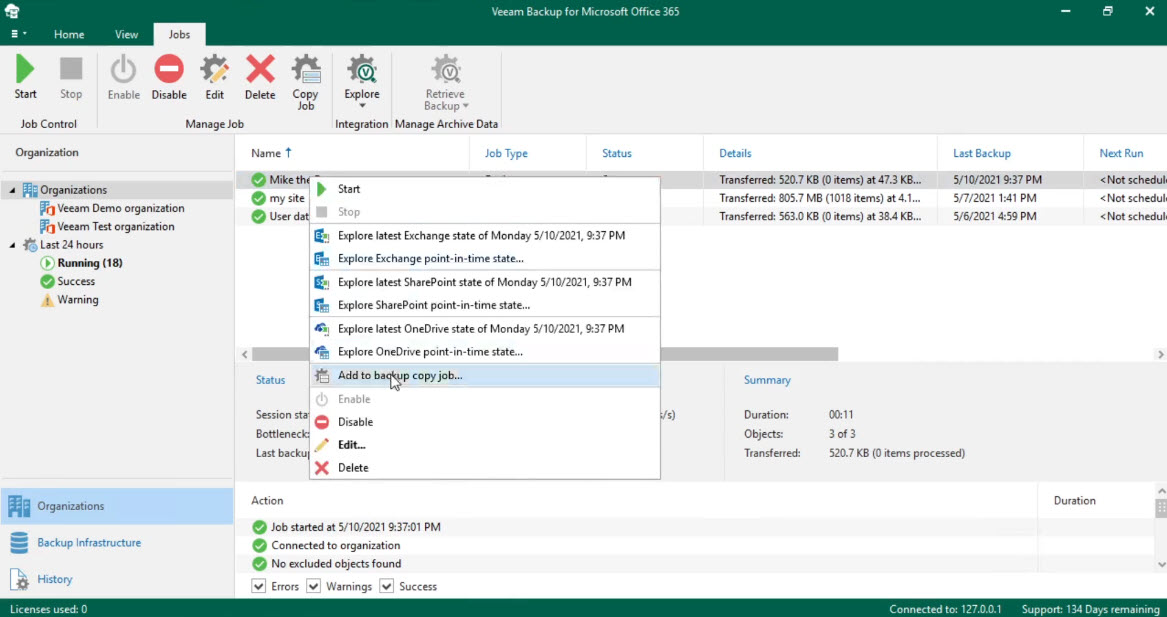 We will select the destination where we want to send it, in this case, it is to an Azure Archive repository:
 We will now select when we want to send it, immediately once the backup job finishes, the copy will be launched, or schedule it to copy all the points at a certain time, etc.
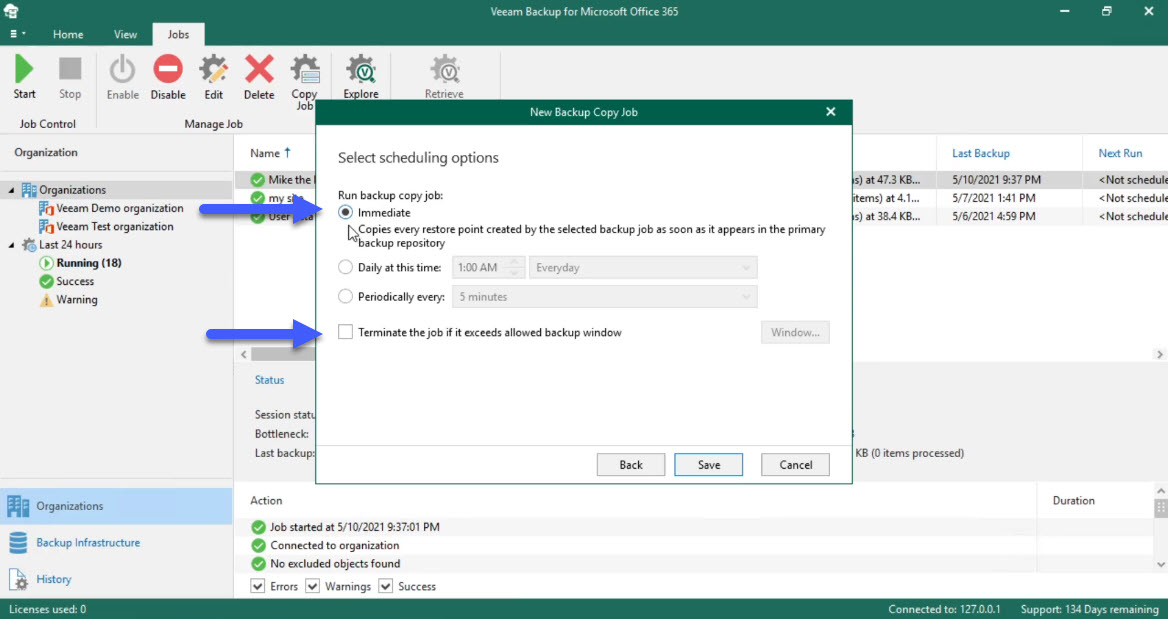 If we want to see the status of our job, we will select the new Job, which is named the same as the primary but with – copy Job:
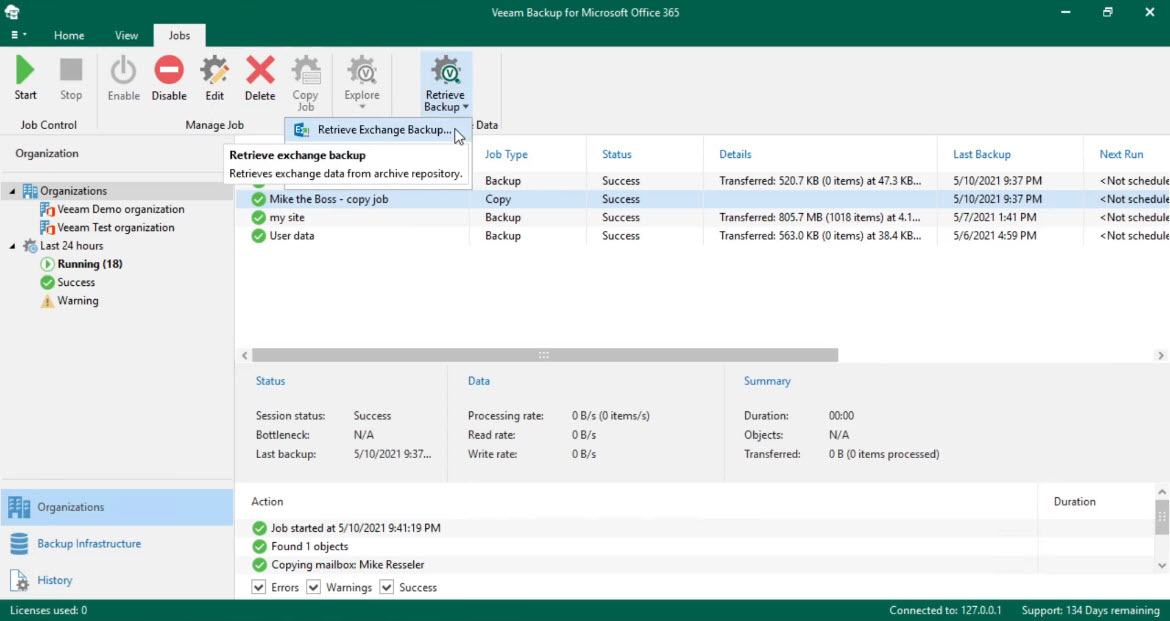
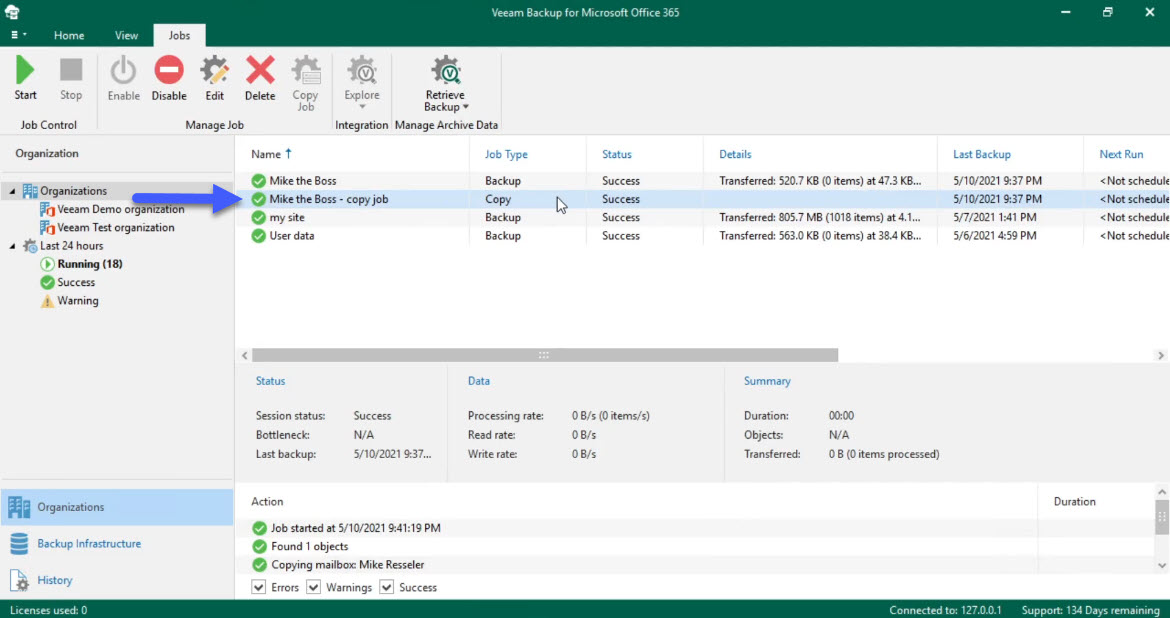 Recovering from AWS S3 Glacier, or Azure Archive is slow and expensive, if we need to restore something from those points, we will first have to run a command to recover them, with the functionality called Retrieve Backup, it will copy the items we need from these Archive Repository to our normal AWS S3 or Azure Repositories, and already from there we can launch the normal restore:
  That’s all folks, at the moment Veeam has not given a release date for Veeam Backup for Microsoft Office 365 v6.
Leave a Reply