
 Greetings friends, today we are going to take another step into proper reporting, visibility, and analytics around one of the most important workloads customers are starting to protect more and more: Microsoft Entra ID.
I was looking at the new Microsoft Entra ID backup data inside Veeam Backup & Replication, and I thought: this is great, but we need a proper report.
Not just a CSV. Not just a SQL query. Not just something that says the job ran.
I wanted something that a backup administrator, an identity administrator, or even a security team could open and understand in seconds:
- What happened?
- Was the backup successful?
- How many objects were discovered?
- How many objects were stored?
- What failed?
- Which users, groups, applications, service principals, or role assignments are protected?
- Can I search by one user and see the backup sessions over the selected period of time?
So, as usual, I ended up building a PowerShell script that queries the Veeam Backup & Replication PostgreSQL database directly and generates a full HTML dashboard.
And yes, it also exports CSV files and sends everything by email using Microsoft Graph API.
Why is this important?
Microsoft Entra ID is no longer just Azure AD with another name. It is the heart of identity for Microsoft 365, Azure, SaaS access, enterprise applications, conditional access, service principals, permissions, automation, and much more.
If that identity layer is compromised, misconfigured, deleted, or changed in the wrong way, the impact can be huge.
Veeam Backup & Replication gives us the protection layer, which is fantastic. But after protecting something so critical, we also need a clean way to answer simple but powerful questions:
- Are my Entra ID backups running successfully?
- How many sessions completed with warnings?
- Are there failures I should investigate?
- How many objects are protected?
- What object types are being captured?
- Can I search for a specific user, app, group, or service principal?
- Can I export this data and send it to someone else?
That is exactly what this report is trying to solve.
Building blocks and logic
The idea is very simple. We use PowerShell to connect to the Veeam Backup & Replication PostgreSQL database, extract the relevant Microsoft Entra ID backup information, and then generate a rich HTML dashboard.
The script produces three different layers of data.
First, the job sessions. This tells us when the Entra ID jobs ran, the result, the duration, processed data, stored data, and the reason or message when something is not successful.
Second, the object counts per session. This is extremely useful because it shows how many objects were discovered, how many were stored in the repository, and whether there were failed or incomplete items.
Third, the protected objects inventory. This is where we go deeper into the veeamrepository_* databases and extract the actual protected objects, including users, groups, applications, service principals, administrative units, role definitions, role assignments, and more.
The final flow looks something like this:
- Run the PowerShell script from the Veeam Backup & Replication server.
- Detect the right VBR database schema depending on the VBR version.
- Query Entra ID job sessions.
- Query per-session object-type counts.
- Query granular protected objects from the repository databases.
- Export all data to CSV.
- Generate a self-contained HTML dashboard.
- Compress the HTML and CSV files into a ZIP.
- Send the report by email using Microsoft Graph API.
The result is a report that can be opened offline, sent by email, archived, or scheduled.
What does the report include?
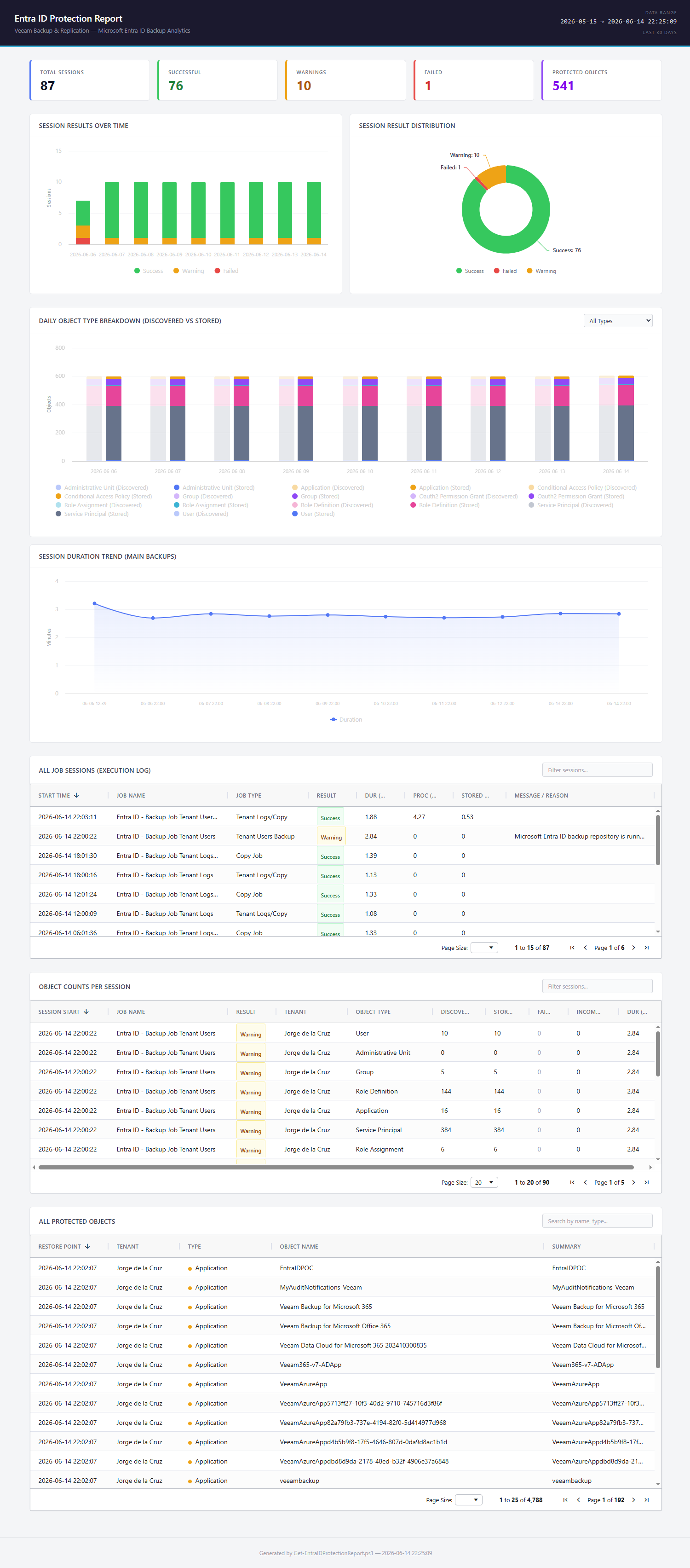
At the top of the report, we have the usual KPI cards:
- Total Sessions
- Successful
- Warnings
- Failed
- Protected Objects
This gives a very quick overview of the protection status during the selected time range.
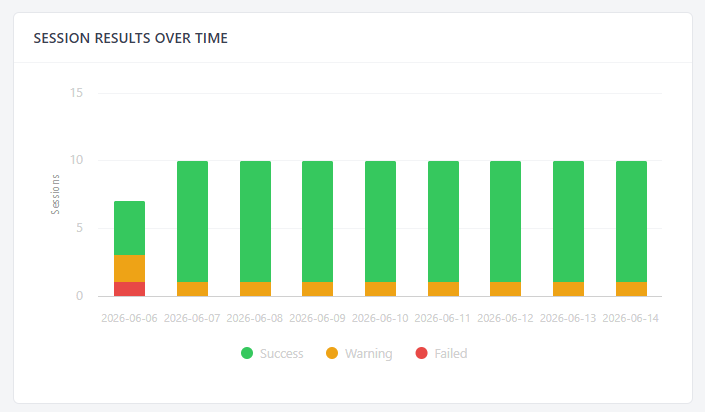
Session Results Over Time
This chart is useful to quickly spot if something started failing or warning on a specific day.
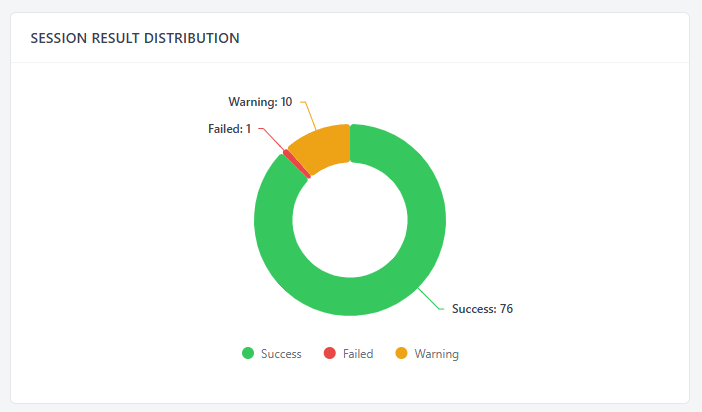
Session Result Distribution
A clean donut chart showing the split between successful, warning, and failed sessions.
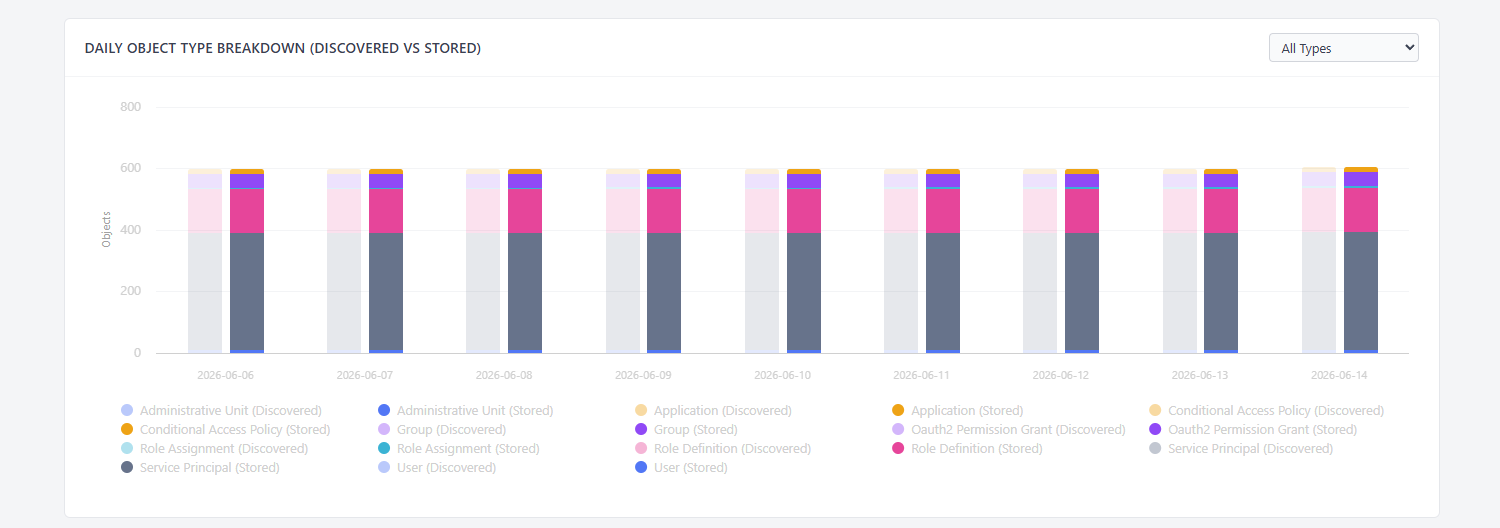
Daily Object Type Breakdown
This one is very useful. It shows discovered versus stored objects per object type, per day. For example, users, applications, groups, service principals, administrative units, role definitions, and role assignments.
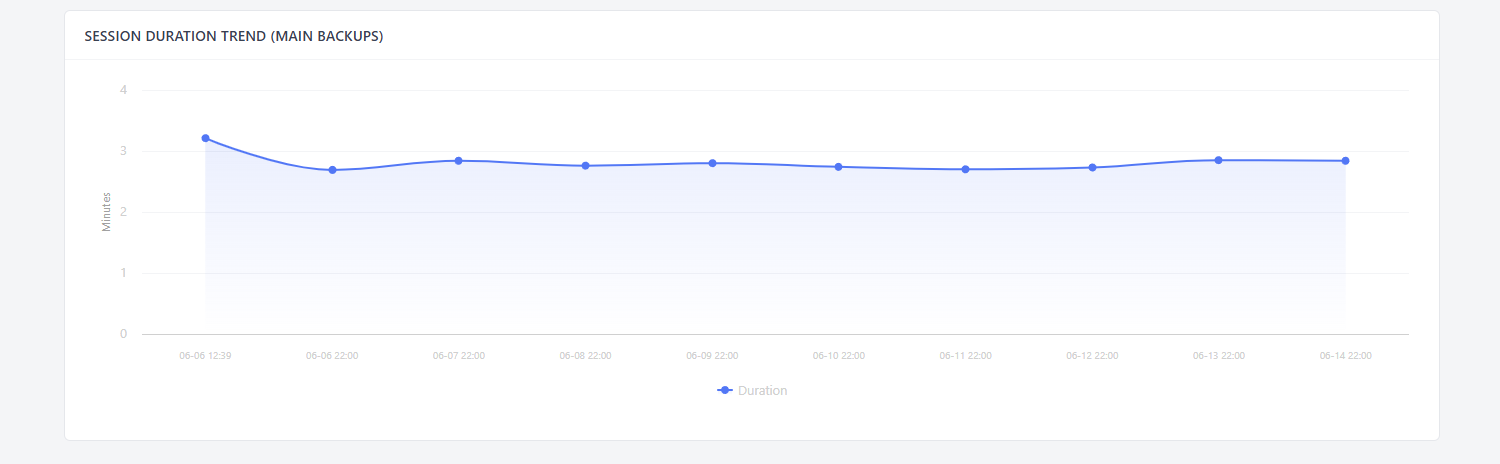
Session Duration Trend
This helps to understand if the main backup duration is stable, or if suddenly something is taking longer than expected.
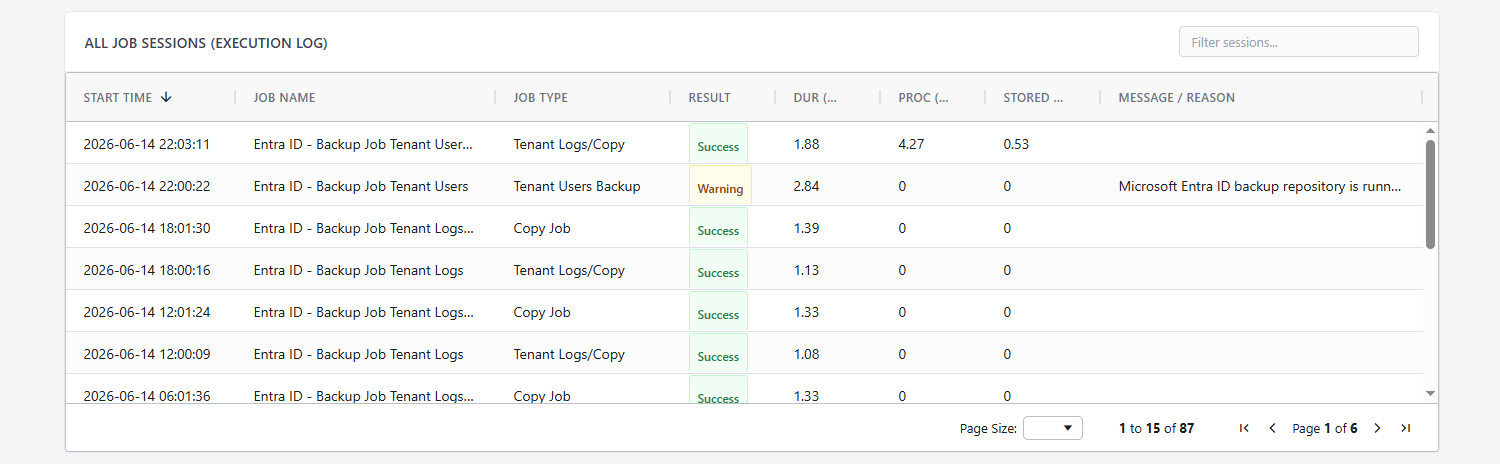
And then we get to the really useful part: the AG Grid tables.
All Job Sessions
This table contains the execution log of all sessions, with job name, job type, result, duration, processed size, stored size, and the message or reason.
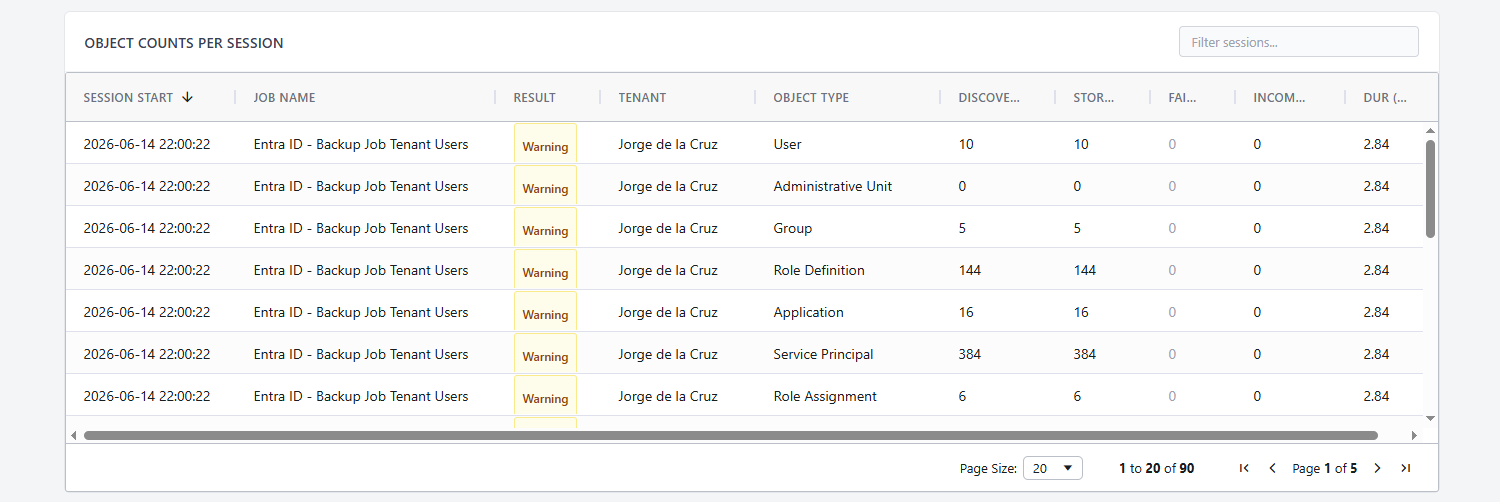
Object Counts Per Session
This table shows the object-type breakdown for each session. For example, how many users were discovered, how many groups were stored, whether there were failed or incomplete objects, and the session duration.
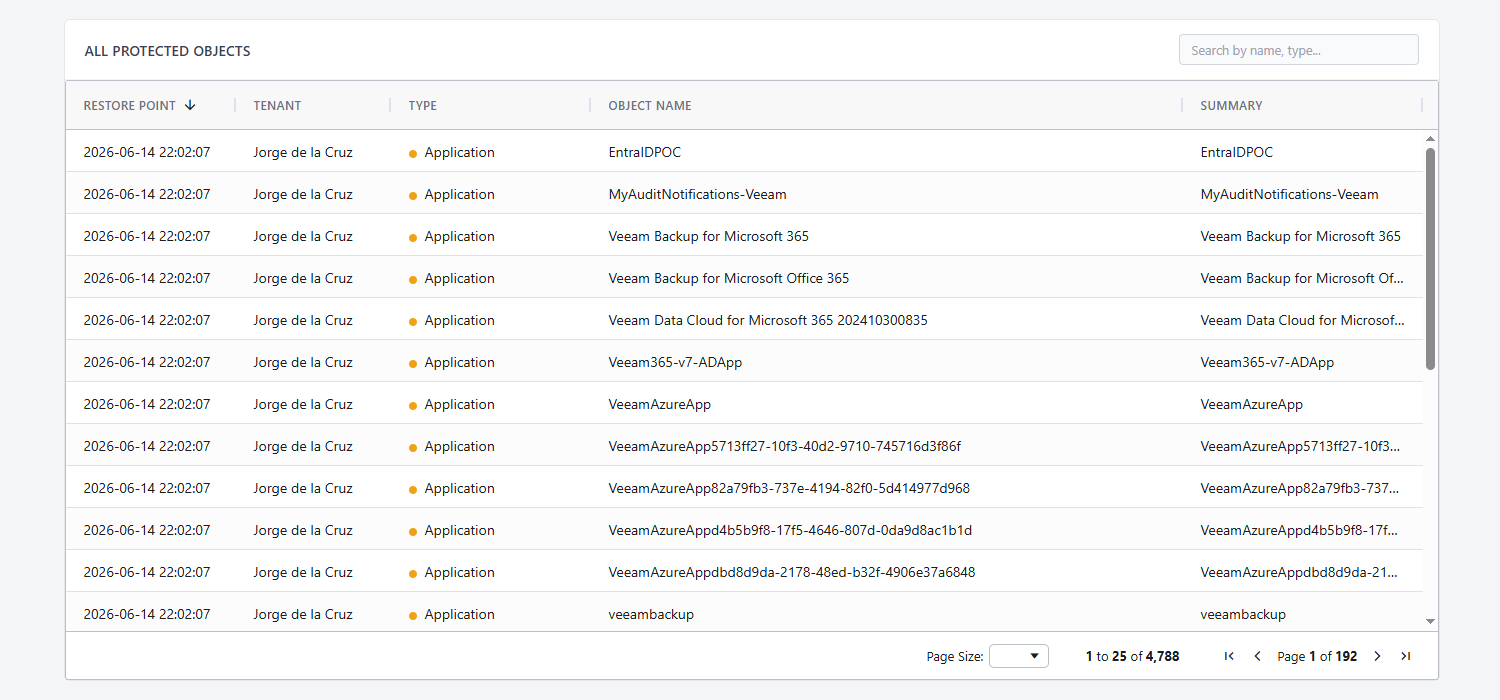
All Protected Objects
This is my favourite one. It gives you the protected object inventory. You can search by user, group, application, service principal, or any other protected object type.
For example, if someone asks:
- Is this user protected?
- Was this application included?
- Do we protect these service principals?
- How many role assignments are stored?
You can simply search in the table and get the answer.
Configuring the script
After downloading the script, the first thing to review is the configuration section.
The basics are:
[bool]$ExportCsv  = $true
[bool]$ExportHtml = $true

[string]$ExportPath = "C:\temp\EntraID_Protection_Report.csv"
[string]$HtmlPath   = "C:\temp\EntraID_Protection_Dashboard.html"
You can enable or disable CSV and HTML exports. I personally keep both enabled because CSV is great for troubleshooting, while HTML is great for humans.
Email configuration
The script can send the generated report by email using Microsoft Graph API.
You need to configure these values:
[bool]$SendEmail     = $true
$RecipientEmail      = "[email protected]"
$TenantId            = "YOURTENANT.onmicrosoft.com"
$ClientId            = "YOURCLIENTID"
$ClientSecretPlain   = "YOURCLIENTSECRETFORMAILAPP"
This is very similar to some of the previous scripts I have shared. We use an Azure App Registration, generate a client secret, give it the right Graph permissions, and then authenticate from PowerShell.
The email carries the ZIP file with the offline HTML dashboard and all CSV exports. Inside that HTML dashboard, you get the charts and the AG Grid tables ready to consume.
Making sure we have MSAL.PS
To send emails using Microsoft Graph API, we need the MSAL.PS PowerShell module.
Install it once as Administrator:
Install-Module -Name MSAL.PS -Force -AllowClobber
The script uses this module to obtain a token and call Microsoft Graph.
PostgreSQL configuration
The script uses psql.exe to query the Veeam Backup & Replication PostgreSQL database.
By default, it expects PostgreSQL under:
$PsqlInstallPath = "C:\Program Files\PostgreSQL"
$DbUser = "postgres"
$DbName = "VeeamBackup"
$DbHost = "localhost"
$DbPort = "5432"
The script searches recursively for psql.exe, so it should find the right binary as long as the PostgreSQL path is correct. You can connect to remote PostgreSQL as long as the postgres.conf and the hba.conf are correct and allow the machine running the script to connect.
VBR version detection
The script also detects which VBR database schema should be used.
For newer versions, it uses the dis schema. For older versions, it falls back to the wmiserver schema.
This makes the script useful across VBR v12.3, v12.4, and v13 style environments.
Selecting the time range
By default, the report includes the last 30 days:
[int]$LastDays = 30
You can change this to 7, 14, 60, or whatever makes sense for your environment.
For regular operations, I think 30 days is a nice balance. It gives you enough history without creating a massive report.
Downloading Highcharts and AG Grid
The HTML dashboard is self-contained, which means the JavaScript libraries are embedded inside the HTML file.
This makes the report portable and easy to send by email.
Create this folder, and download the libraries:
C:\temp\libs
Invoke-WebRequest -Uri 'https://cdn.jsdelivr.net/npm/[email protected]/highcharts.js' -OutFile 'C:\temp\libs\highcharts.js'
Invoke-WebRequest -Uri 'https://cdn.jsdelivr.net/npm/[email protected]/dist/ag-grid-community.min.js' -OutFile 'C:\temp\libs\ag-grid.js'
those files are missing, the script will still generate the HTML, but the charts or tables will not render properly.
Running the script
Once everything is configured, just run:
.\Get-EntraIDProtectionReport.ps1
You will see the console output showing what the script is doing:
- Detecting the VBR version
- Querying Entra ID job sessions
- Querying per-session object-type counts
- Finding Entra ID repository databases
- Extracting protected objects
- Generating the HTML dashboard
- Compressing the files
- Sending the email
The output files
The script generates several files:
C:\temp\EntraID_Protection_Report.csv
C:\temp\EntraID_Protection_Report_ObjectCounts.csv
C:\temp\EntraID_Protection_Report_ProtectedObjects.csv
C:\temp\EntraID_Protection_Dashboard.html
C:\temp\EntraID_Protection_Dashboard.zip
The ZIP file is used for email delivery.
Why a ZIP?
Because the Microsoft Graph sendMail endpoint has a size limitation, and the offline HTML dashboard can become quite large because it embeds Highcharts and AG Grid.
By compressing everything, we keep the email delivery much cleaner.
How does it look by email?
The email is simple and direct. It tells you that the latest Veeam Entra ID Protection Report has been generated, and it attaches the ZIP file with the HTML dashboard and CSV exports.
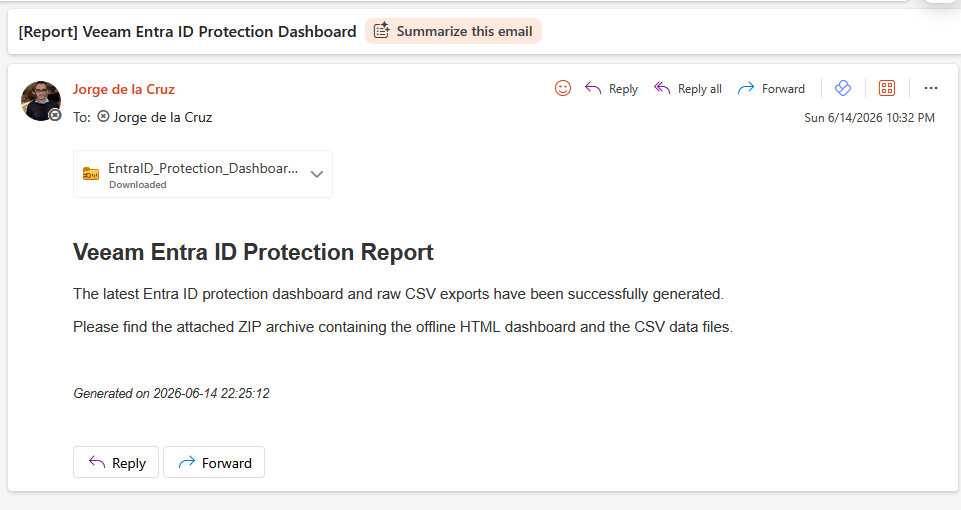 This is perfect to schedule weekly or monthly. Imagine receiving this report every Monday morning and having a clear view of your Microsoft Entra ID backup protection.
Scheduling the report
The next natural step is to create a Windows Scheduled Task.
For example:
- Weekly every Monday at 08:00
- Monthly on the first day of the month
- Daily if you are running a very sensitive environment
- On demand when preparing for an audit or internal review
The script is already prepared for this type of automation.
Things to consider
This script reads directly from the Veeam Backup & Replication PostgreSQL database and the related veeamrepository_* databases. It does not modify jobs, restore points, repositories, or protected objects. Still, please do your own due diligence.
- Review the script.
- Test it in a lab.
- Run it first manually.
- Validate the output.
- Then schedule it if you are happy.
This is a community script, not an officially supported Veeam component.
Script in GitHub
You can download the script from the GitHub repository:
https://github.com/jorgedlcruz/veeam-html-reporting
As always, download it, review it, test it, and adapt it to your own environment.
Final thoughts
Microsoft Entra ID protection is going to become more and more important. Having the backup is step one. Being able to report on it, prove it, search it, export it, and send it to the right people is the next step. This PowerShell script tries to close that gap with a clean HTML dashboard, CSV exports, and automated email delivery.
Hope you enjoy it.
Leave a Reply